


Preparing the Development Environment
ABAP Cloud Project
To develop ABAP applications for SAP BTP, you need to first install and prepare the Eclipse development environment. Watch this video to know how.
Different Types of ABAP Project

Eclipse as a development environment is not embedded in the ABAP system. Instead, you have to connect to each ABAP system in which you want to work, and each connection is represented in Eclipse by a project. There are two kinds of project in ADT – ABAP Projects, which you use to connect to an on-premise ABAP system, and ABAP Cloud Projects, which you use to connect either to SAP BTP ABAP or to SAP S/4HANA Cloud.
Locating the ABAP Environment

The SAP Business Technology Platform is SAP’s platform as a service (PAAS). To access it, you need to create a global account. There are various subscription models available, depending on whether you need to run large-scale productive environments or just a single-user environment for your own continuing professional development.
Within a global account, there are one or more subaccounts. Each subaccount can be configured differently, so that a single enterprise can run several different platforms but manage their subscription using just the single global account. Inside the subaccount, you deploy a runtime such as Cloud Foundry or Kyma. Once you have done this, you can deploy an ABAP instance.
Taking a First Look at ABAP
Investigation of ABAP Code
Working in the Project Explorer
To work with ABAP development objects, you usually display the contents of a package in the project explorer. Packages are containers for development objects that logically belong together.

To add a package to your favorites, right-click the Favorite Packages node in the project explorer and choose Add Package. A dialog box appears, in which you can enter a filter term. The system then displays only the packages that contain this term. Double-click the package that you want to add to your favorites.
Opening Development Objects
There are two ways to open a development object in ADT.

To add a package to your favorites, right-click the Favorite Packages node in the project explorer and choose Add Package. A dialog box appears, in which you can enter a filter term. The system then displays only the packages that contain this term. Double-click the package that you want to add to your favorites.
Opening Development Objects
There are two ways to open a development object in ADT.

The first is to locate the object name in the project explorer and double-click it. The other is to use the keyboard shortcut, Ctrl + Shift + A. This opens a dialog box in which you can enter part of the name of an object.
Investigating a Development Object
When you are working with ABAP code, there are certain function keys in ADT that will help you.
Let’s look at these function keys.
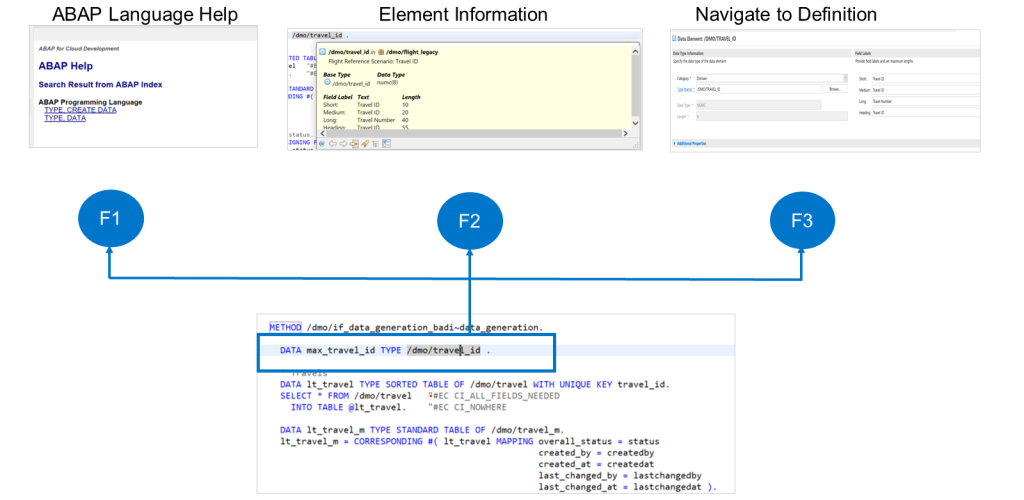
F1The F1 key displays the ABAP language help for the current statement. A statement is the name for a command in ABAP.F2The F2 key displays information about the element on which the cursor is placed.F3The F3 key navigates to the definition of the object on which the cursor is placed. You can return from there to the original object using the key combination, ALT + LEFT ARROW, on your keyboard.
Understanding Software Structure and Logistics
ABAP Package
Organizing Development

When you create a development object in the ABAP environment, you must assign it to a package. Packages serve as containers for all of the development objects that logically belong together. Each package is also assigned to a software component. The complete set of development objects in the system is referred to as the ABAP Repository. Consequently, development objects are also often called repository objects.
You develop your applications in a development environment, but must then ensure that they can be tested in an appropriate test environment before being moved on to the production environment. Typically, you will have a single global account and a subaccount for each of the development, test, and production environments. Software components allow you to transport your objects.
Transport Request

When you create a new development object or change an existing one, you must assign it to a transport request. Transport requests ensure that all development objects that logically belong together are transported together into the test, and subsequently the production system.
Each transport request has an owner, and the owner can assign other users to the request. In this way, transport requests support team development.
When an object is included in a transport request, it is locked. This means that it can only be edited by a user who is assigned to the same request.
When work on all of the objects in the request is finished, all of the developers assigned to it must release their work. After this, the owner of the request can release the entire request. If the transport request belongs to a transportable software component, the system administrator can import it into the test system for testing.
When you release any kind of transport request, the system releases the locks on the objects in the request, so that any developer can access them again.
To learn how to create an ABAP package, refer to the demonstration, How to Create a Package.
Developing Your First ABAP Application
A ‘Hello World’ App in ABAP
As in all other programming languages, the first thing that you should do in ABAP is familiarize yourself with the development environment and the most elementary aspects of the language by writing a short “Hello World” app.
The main user interface technology that you will use in modern ABAP programming is Fiori Elements. However, ADT provides a console for you to create output quickly and simply in test applications.
Create a ‘Hello World’ Application
Task 1: Create a Hello World Application
In your package, create an new ABAP class. Let the class implement interface IF_OO_ADT_CLASSRUN so that you can use the class as the main program for an Eclipse console app.
Steps
- In your package, create a new ABAP class with the name ZCL_##_HELLO_WORLD. Ensure that it uses the interface IF_OO_ADT_CLASSRUN. When you are prompted to assign the class to a transport request, use the transport request that you created in the previous task.
- Choose File→New→ABAP Class.
- Enter your package ZS4D400_##, where ## is your group number.
- Enter the name ZCL_##_HELLO_WORLD where ## is your group number, and enter a description for your class.
- Choose Add… (next to the Interfaces group box).
- Enter the filter text IF_OO_ADT_CLASSRUN. Double-click the matching entry in the hit list.
- Choose Next.
- Select Choose from requests in which I am involved and your own transport request.
- Choose Finish.
- In the if_oo_adt_classrun~main( ) method, use out->write( ) to output the phrase Hello World.
- In the editor, enter the following coding between METHOD if_oo_adt_classrun~main and ENDMETHOD.:Code SnippetCopy codeSwitch to dark mode
out->write( 'Hello World' ).
- In the editor, enter the following coding between METHOD if_oo_adt_classrun~main and ENDMETHOD.:Code SnippetCopy codeSwitch to dark mode
- Activate and test your class.
- Activate the class with the keyboard shortcut Ctrl + F3.
- Run the class with the F9 key.
- Check the output in the Console view of Eclipse.
- Check the Console view that should have opened as a new tab below the editor view.
- If the Console view is not visible, open it by choosing Window→Show view→Other. Double-click Console in the hit list.



Heya i’m for the first time here. I came across
this board and I in finding It really useful & it
helped me out a lot. I’m hoping to present
one thing again and help others such as you aided me.
Thanks